Changing Your Instagram App Icon Is Way Easier Than You’d Expect
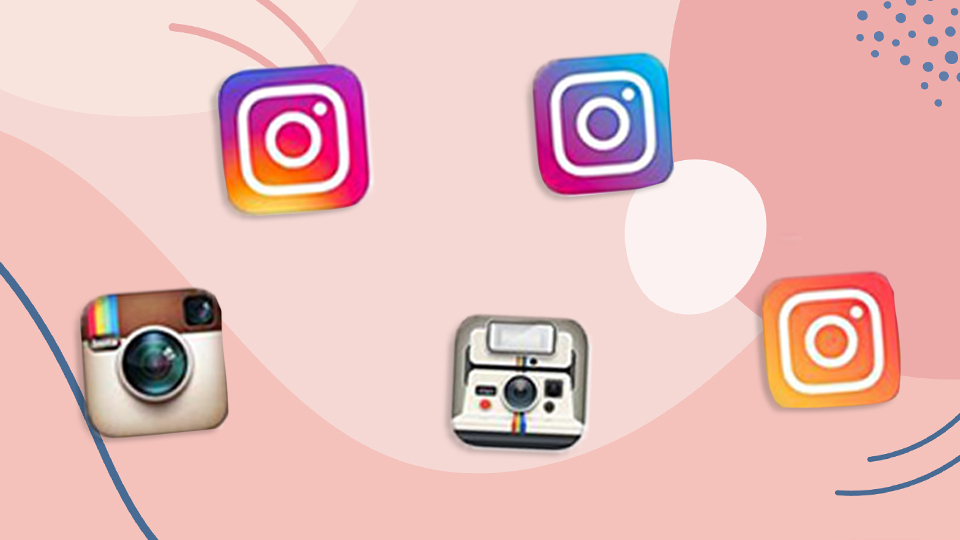
It’s hard to believe, but we’ve been scrolling, posting and stalking on Instagram for a whopping 10 years. Happy birthday to my favorite app on the planet! In honor of the big day, IG has rolled out a few new fun releases, but as with any app update, there’s definitely a learning curve. If you’ve seen others updating theirs and are wondering how to change your Instagram app icon, don’t stress—it’s actually a lot easier than you might think.
With the rise of customizable widgets on iOS 14, it’s no surprise that people are starting to care more about their phone screen’s aesthetic. While the Instagram app is iconic in appearance, it’s definitely gone through quite a few changes over its decade of growth, transforming from a classic camera to a sleek white outline against an ombre of vivid hues. If you miss “the old Instagram,” though, you’re in luck, as you can now change your Instagram app icon with just a few clicks.


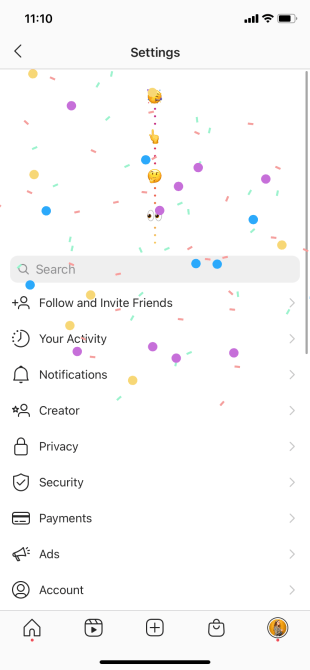
First things first, update your Instagram app, then go to your profile. Click the three bars at the top left, and then select Settings. Once in Settings, simply drag down on the page and you’ll see a string of emojis forming at the top of the screen. Keep dragging down and soon a burst of confetti will appear, taking you to the icon update page you seek. A strange, but oddly satisfying tactic.
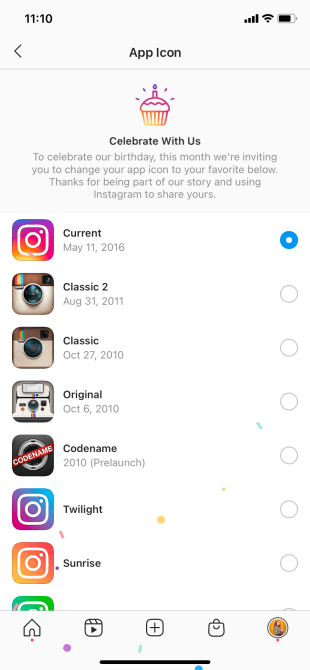
From there, Instagram invites you to “Celebrate With Us” by choosing your favorite app icon from a variety of options. There’s the Original, a white Polaroid-style camera that appeared when the app first launched, the updated Classic options, which feature the well-known tan camera, and the app’s current look, which has been around since 2016.
There are also a few wildcard options, including multiple color ombres like Twilight, Sunrise, Aurora, Pride and Gold. There are also more minimalist takes, like Dark, Light and Very Dark. Perhaps coolest of all is Codename, the icon used while testing the app before its official launch.
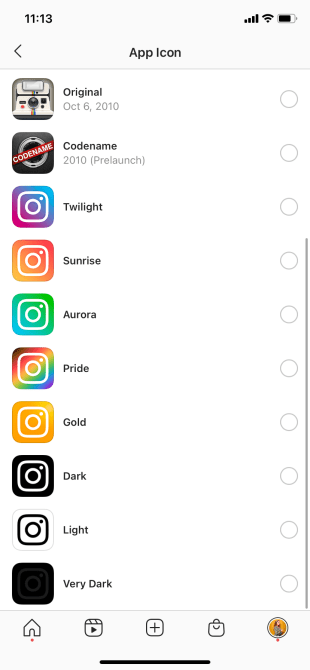
All you need to do to get the icon of your choosing is to select your fave, and boom! There it is. That said, If you’re an Android user, your app icon won’t actually change—a new home screen shortcut to Instagram will be made, so you’ll still get the look, but it won’t be quite the same thing.
If you’re one of the iPhone users who has spent hours perfecting your Widgets and home screen aesthetic, you might love this chance to customize. If you’re not really concerned with how your apps look, hopefully you can still enjoy the personalized aspect of getting to select your fave. Either way, it’s sweet of Instagram to give us a small gift on their birthday. Thanks, IG!